Read the S9 Pro lobby like a map, not a wall of buttons
This visual atlas breaks the supplied S9 Pro lobby screenshot into practical zones. Use it as an independent S9 Pro games interface reference and a cautious S9 Pro menu guide for adults in Pakistan. Labels and positions can change, so compare the map with the screen in front of you.
Unofficial educational website. We do not operate S9 Pro, access accounts, confirm feature availability or host application files.
A AccountE Utilities
D Quick tools
B · CATEGORY LINEC · CONTENT TILES
F · ACCOUNT ACTIONS
Five visual zones, one deliberate reading order
AIdentity and account context
BBrowsing categories
CFeatured and individual tiles
D–FUtilities and account actions
Panoramic reference
Locate the zone before interpreting the control
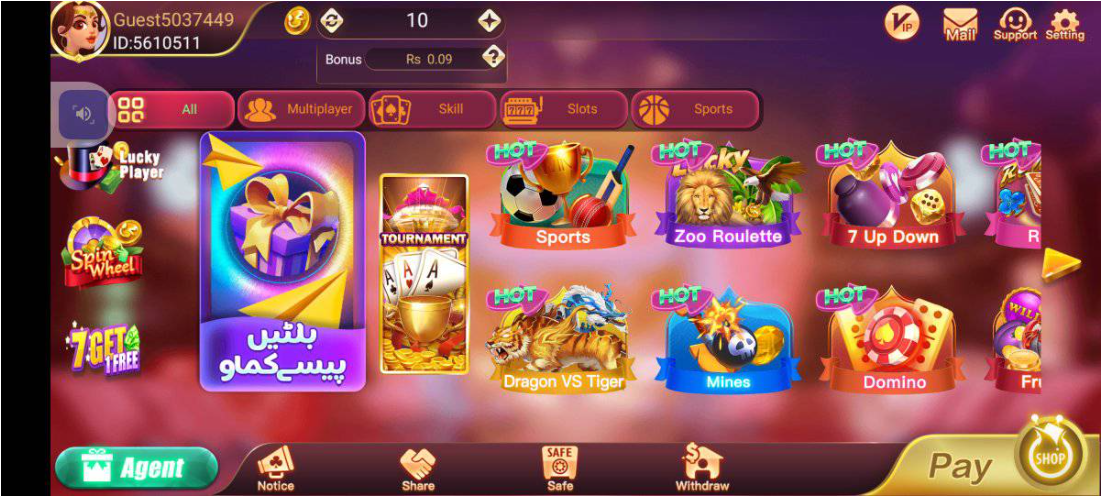
The image below was supplied for this project. The overlay labels are an editorial guide, not labels from the app itself. Use them to understand the composition of the screen and to distinguish ordinary browsing from account-related actions.
ABCDEF
User-supplied visual reference. Category names, tiles, balances, notices and control positions may differ by account, device or later interface changes.
Zone directory
Six areas, six different questions
A
ORIENTATION
Account and profile area
Begin here to confirm which account is visible. The supplied screenshot places an avatar, a guest label and an identifier near the top-left. Do not publish that information or use someone else’s screenshot as proof of your own account.
Confirm the signed-in context.
Mask identifiers in screenshots.
Do not infer identity from an avatar.
B
FILTER
Category line
The reference shows category labels such as All, Multiplayer, Skill, Slots and Sports. A category is a browsing filter, not a statement about every tile. Select one filter at a time and look for the highlighted state before reading the results.
Use All as a broad overview.
Read the highlighted tab.
Expect categories to change.
C
CONTENT
Featured and individual tiles
The centre of the supplied S9 Pro games interface contains a large featured panel and smaller named tiles. Artwork is a visual signpost; it does not explain rules, eligibility, account effects or availability. Open only after reading the current title and context.
Separate artwork from instructions.
Read one tile at a time.
Leave if the route is unfamiliar.
D
QUICK ACCESS
Left-side shortcuts
The image shows vertically arranged shortcut graphics along the left edge. Treat these as navigation prompts only. Their visual emphasis does not confirm current terms or priority. Inspect the destination and use the back control if the context changes unexpectedly.
Notice where the shortcut leads.
Do not rely on promotional art.
Return to the map if disoriented.
E
UTILITY
Mail, support and settings
Utility icons appear around the upper-right in the supplied screenshot. Before sharing evidence, remove passwords, PINs, one-time codes and unrelated account data. A support icon is not proof that an external contact claiming to be support is genuine.
Check the complete destination.
Use privacy-safe screenshots.
Keep settings changes deliberate.
F
ACCOUNT ACTION
Bottom navigation and action controls
The bottom row includes controls labelled Notice, Share, Safe and Withdraw, while Pay appears prominently on the right in the reference. Pause before these actions. A visible control does not confirm that a function is available, suitable or complete.
Confirm account and destination.
Read current on-screen terms.
Do not repeat an unclear action.
Three-pass route planner
A repeatable way to read an unfamiliar lobby
When the interface feels crowded, scan it in three passes. This reduces accidental taps and keeps account actions separate from ordinary navigation.
PASS 01
Orient
Confirm the signed-in account context, then locate the category line and bottom navigation. Do not open a tile yet.
PASS 02
Filter
Select the category that matches your browsing intent. Check which tab is highlighted and read the visible tile names.
PASS 03
Verify
Before opening a tile or account action, confirm the label, route and account. Stop if the destination changes unexpectedly.
Category station
Use labels to narrow the screen, not to predict content
ALL
A broad view of visible items. It can include mixed categories and featured panels.
MULTIPLAYER
A label visible in the supplied screenshot. Read the current tile and its own instructions.
SKILL
A browsing label, not an assurance about rules, outcomes or suitability.
SLOTS
A category visible in the reference. Adults should check local requirements and personal limits.
SPORTS
A visible filter in the supplied screen. The current interface may organise items differently.
The names above describe labels visible in a supplied image. They are not a live inventory and do not confirm what is currently available to any account.
Pause points
Know when browsing becomes an account action
Ordinary browsing usually changes a filter or opens information about a tile. Pay, Withdraw, Share, Agent, settings and account-recovery routes can change account context or move to another destination. Treat that transition as a pause point.
Destination changes
Read the full domain and leave if it is unrelated or misspelled.
Credentials requested
Never send a password, PIN or one-time code through chat or an unverified form.
Action is unclear
Return to the lobby, check current records and avoid repeated taps.
Screen differs
Use the map as orientation only; trust the current verified screen over this static reference.
What does the supplied S9 Pro lobby screenshot show?
It shows an account zone, category tabs, a central tile area, utility controls and bottom navigation. The interface may differ in another account, device or release, so use this page as orientation rather than a live inventory.
How should I read the S9 Pro games interface?
Start with the signed-in account context, choose one visible category, read the selected tile, and treat Pay, Withdraw, Share and Agent as separate account-action routes. Check the destination before continuing.
Is this an official S9 Pro menu guide?
No. This is an independent visual guide based on user-supplied screenshots. It does not represent S9 Pro, access accounts or confirm current features.
Does a visible tile or action button confirm availability?
No. A static screenshot only confirms what was visible when it was captured. Read the current verified screen and its current instructions before taking any action.
Independent-site notice: S9 Lobby Atlas is an unofficial educational map for adults in Pakistan. It is not S9 Pro support, does not provide a live feature list, does not access accounts, does not verify outcomes and does not host an APK. Interface descriptions are limited to the user-supplied screenshot and may become outdated.
S9 Pro help guide for Pakistan
This page explains the S9 Pro lobby, visible menu areas and common navigation questions for adults in Pakistan.
Primary topic: S9 Pro help guide for Pakistan
Related checks: S9 Pro guide and S9 Pro support information
Scope: Independent information for adults in Pakistan; no account access, result guarantee or APK hosting.